Content
The Content section is where you decide what your players see on the sportsbook site — the banners on the homepage, the tournaments featured in the sidebar widget, and similar marketing surfaces. No developer involvement needed.
The pages you'll touch most often:
- Banners manager — fills every banner zone on the site
- Featured tournaments — controls the tournaments shown in the sportsbook's sidebar widget
The rest of the sidebar holds more specialised pages. Most of these run on automatic algorithms or set-once configurations that already work well by default — you don't need day-to-day management. When you do touch them, it's usually for a specific reason (a new region's currency, a regulated minimum stake, a marketing push, a compliance request). The breakdown:
| Subsection | Default behaviour & when you'd touch it |
|---|---|
| Categorizer config | Auto-sorts sports by 30-day bet sum, plus optional personalization. Touch it only for a deliberate re-ordering (e.g. promoting a sport during a tournament) |
| Stake manager | Set once per region/currency at integration time. Edit only when adding a currency or a regulator changes the minimum |
| Currency suggestions | Manual stake-chip configuration. Skip in favour of Suggestions unless you specifically need region/currency scoping |
| Suggestions | Create one DEFAULT entry with Algorithm = SMART and you're done — personalised chips work without further input |
| Blacklist tournaments | Empty by default. Add entries only for legal/compliance requests to suppress a tournament |
| Sport slug list | Integration-managed reference data. Don't touch — renames break URLs and analytics. Ask the integration manager if you need a new slug |
| Manual rankers | Empty by default. Optional pin-on-top override for marketing pushes; requires the WL-scope Pinned feature control |
| Pre-generated bets | Auto-generated by a personalized-ranking neural network. Manual pins are optional, via a marked test account |
How changes are saved
Save semantics vary by page: Banners manager needs an explicit Save click; Featured tournaments uses Apply config → SAVE (two steps); Stake manager edits autosave the moment you tab out of the field. Each section below repeats this where it matters.
Banners manager
A banner zone is one slot on your site that can show a banner. The zone name encodes the surface it lives on, as {pageType}-{location}-{platform}-{index}. The name is assembled automatically from the dropdowns in the create dialog — you don't type it yourself.
The SPA currently delivers banners for the following parameter combinations:
| Axis | Supported values |
|---|---|
| Page type | mix (combined sports + esports homepage), esport (esports-only), classic (sports-only) |
| Location | top_slider (the rotating slider at the top of the page), right (the right-rail slot) |
| Platform | desktop, mobile, ios, android |
| Index | 0 |
Examples of valid zones: mix-top_slider-desktop-0, esport-right-mobile-0, classic-top_slider-ios-0. For the integration side (how to serve a banner from your platform, the allowlists, the banner API contract) see Sportsbook → Banners.
Other dropdown values aren't wired up
The BO create dialog exposes more location options (right_slider, top_outrights_slider, events_of_the_day_slider, pinned_sport_event, etc.) and higher index values. They aren't delivered to the SPA today — picking them won't surface anything to players. Stick to the table above.
Zone list
Open Content → Banners manager to see every zone configured for your brand.
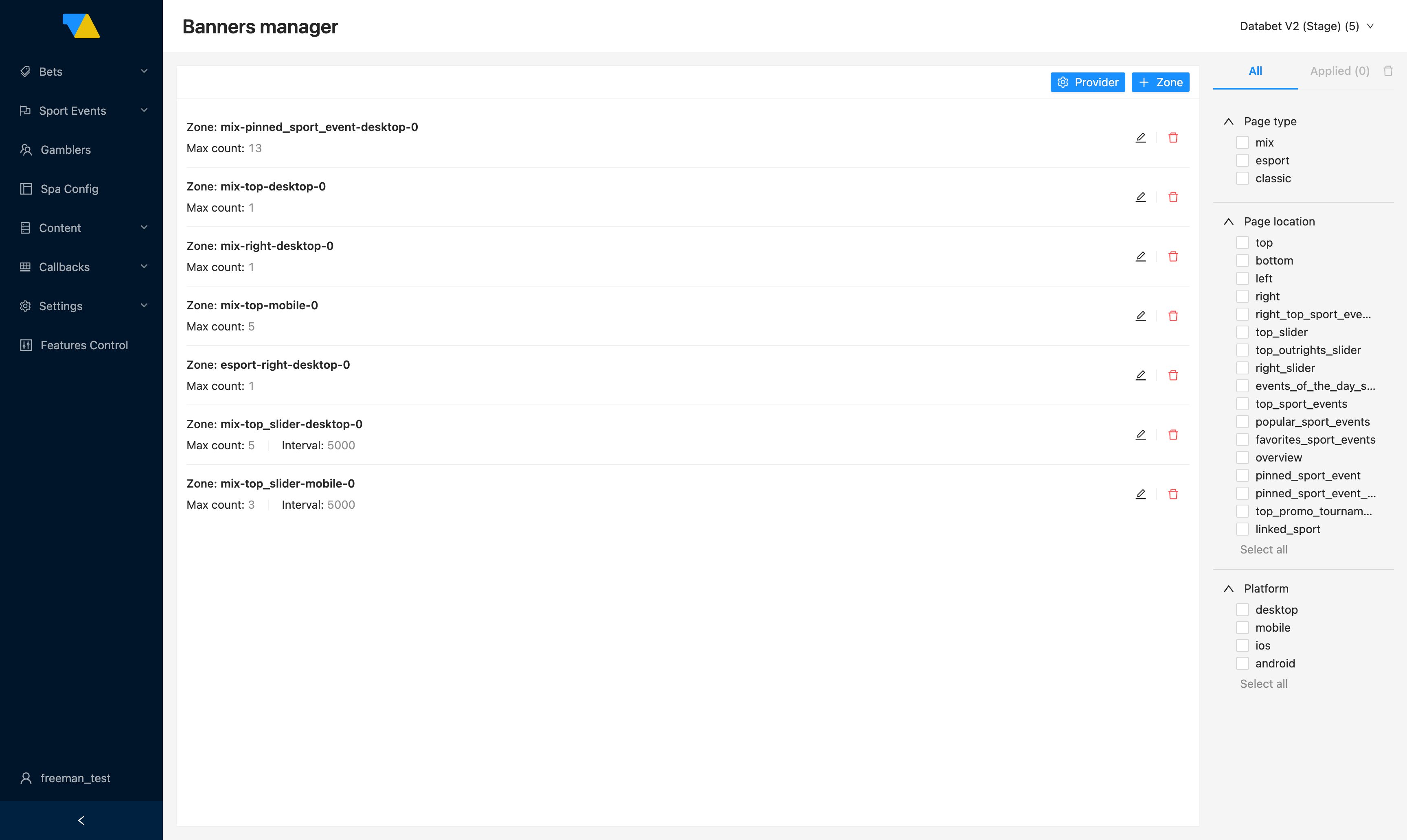
Each row is one zone. You'll see its name, its Max count (how many banners fit), and for carousels its Interval (rotation speed in milliseconds).
Toolbar buttons:
- Provider (gear icon) — switches the view to group by provider type instead of by zone. Useful when you want to find every spot a particular content source is used.
- + Zone — opens the Add new zone dialog (more below).
On each row:
- edit (✎) — opens the zone detail page to manage the content inside it.
- delete — removes the zone. Confirmation required.
The filter panel on the right narrows by Page type, Page location, and Platform.
Creating a new zone
Click + Zone and fill in:
| Field | What to enter |
|---|---|
| Select type | mix, esport, or classic |
| Select location | top_slider or right |
| Select platform | desktop, mobile, ios, or android |
| MaxCount | Maximum number of banners the zone can display |
| Start time / End time | The window during which the zone is active. Outside this window the zone is invisible to players |
| Interval | For carousels only — rotation speed in milliseconds (e.g. 5000 for 5 s between slides) |
| Index | Use 0. Higher indexes would create extra siblings of the same kind but aren't currently delivered to the SPA |
Filling a zone with content
Click the edit (✎) icon on a zone row to open its detail page.
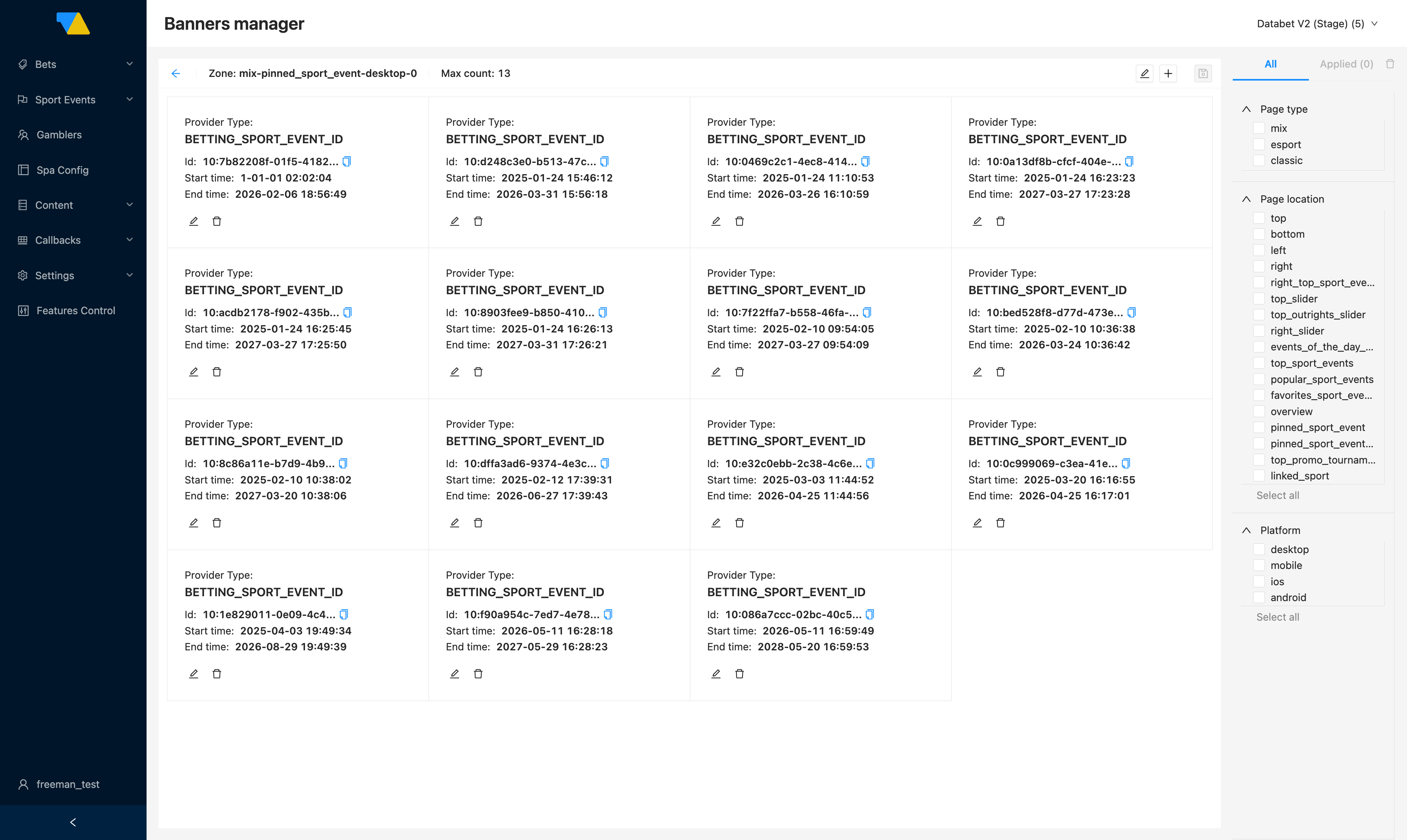
Each card on this page is one provider config — a single source of content for the zone. A slider zone usually has several provider configs, one per banner in the rotation.
To add content:
- Click the + button in the toolbar to add a new provider config.
- Pick a Provider Type (see below).
- Fill in the required details — typically a banner ID and a start/end time.
- Click save in the toolbar.
To change an existing entry, use the edit icon on its card. To remove one, use delete.
Provider types — what to show
Only one provider type is wired through to production today:
| Provider type | What it pulls in |
|---|---|
CMS_BANNER_ID | A single banner served by your integration's Banner API. Add several provider configs of this type inside the same zone to build a slider |
Other provider types are visible but not wired up
The dropdown also lists event-based providers (BETTING_SPORT_EVENT_ID, BETTING_TOP_SPORT_EVENTS, BETTING_LIVE_OF_THE_DAY, BETTING_LINKED_SPORT, etc.) and CMS variants like CMS_BANNER_LIST. They aren't supported end-to-end yet — saving one is harmless (the slot just stays empty) but it consumes a provider-config row and is easy to mistake for a misconfigured banner. Stick to CMS_BANNER_ID.
Featured tournaments
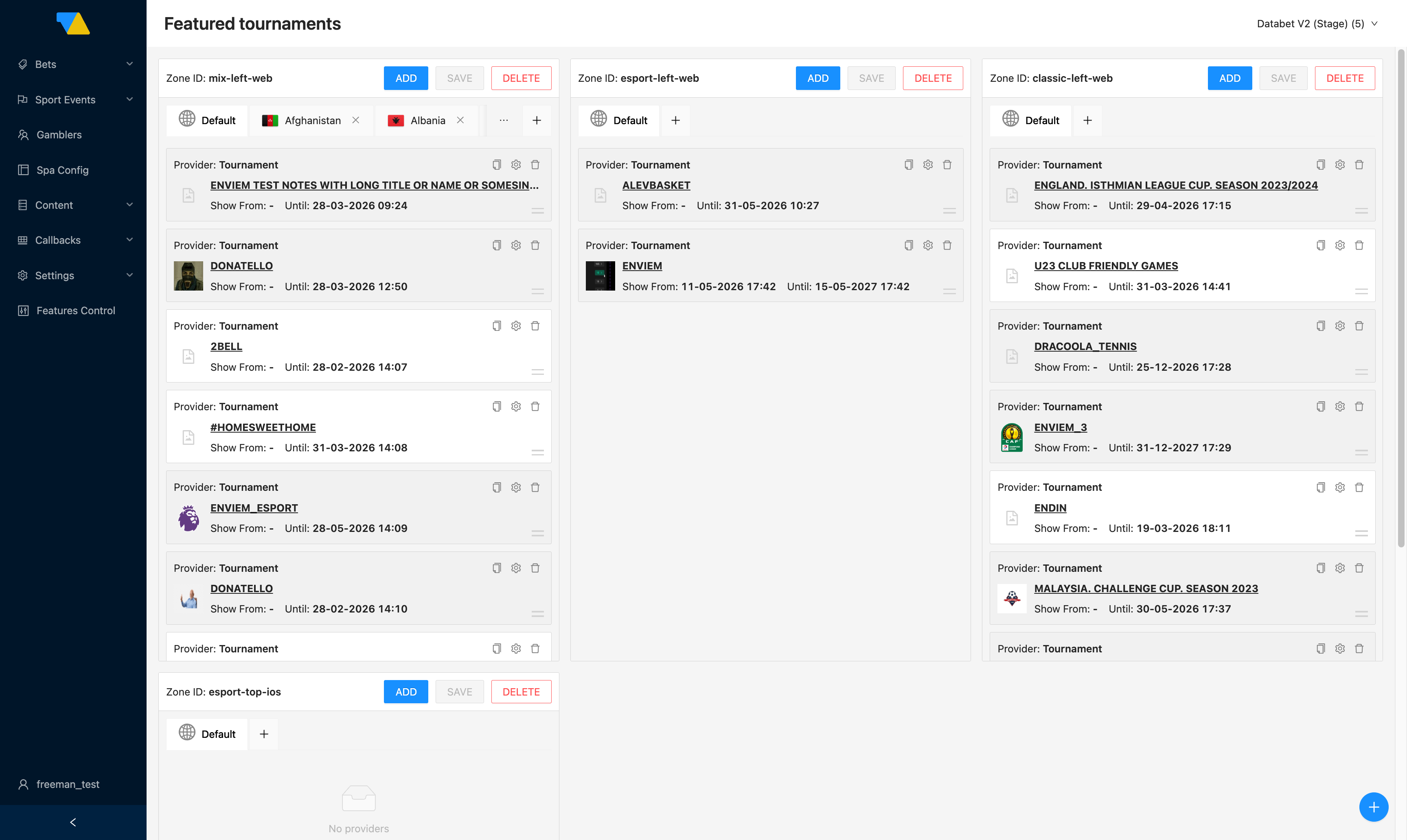
The Featured tournaments page (sidebar: Content → Featured tournaments) feeds the sportsbook's navigation sidebar widget — the list of tournaments under the prematch and all tabs. It's a separate surface from the homepage banners; banner zones don't currently carry tournament cards (see Banners manager for the providers that are actually wired up), so this page is the only operator-facing way to feature a tournament.
'Zone' means something different here
Both Banners manager and Featured tournaments use the word zone, but they refer to different surfaces. On this page a zone is a sidebar slot in the navigation rail. Banner zones (esport-top_slider-desktop-0 etc.) live on the homepage and are managed in the Banners manager.
Sidebar-slot names follow the format {pageType}-{location}-{platform} — note the trailing index that banner zones have is absent here. Common slots are mix-left-web, esport-left-web, and classic-left-web. Operators can add more (e.g. an iOS-only block).
For each zone you can:
- ADD — pick a tournament to feature
- SAVE — apply any pending changes (greyed until you've actually changed something)
- DELETE — remove the entire zone (confirmation required)
The country tabs beneath each zone control geo-targeting:
- Default — tournaments shown when no country-specific list exists
- Country tabs — override the default list for specific countries. Click Add tab (the + to the right of the tabs) to add a country
Each tournament card inside a tab shows the source (Provider: Tournament), the tournament name, and the display window (Show From / Until). The icons on the card:
- copy — copies this card's config so you can paste it elsewhere
- setting (gear) — opens the tournament edit dialog
- delete — removes the tournament from the current country, or from all countries — you choose in the confirmation dialog. The "all countries" option is preselected by default — explicitly switch to "current country" if you only want a single-country removal. Confirming with the default wipes the tournament from every country tab in one click, with no undo
At the very bottom right of the page, the small + button adds an entirely new zone.
How to feature a tournament
- Find the sidebar slot you want to put it in.
- Make sure the right country tab is selected (or stay on Default for everyone).
- Click ADD.
- In the dialog, fill in:
- Provider Type —
Tournamentfor a single tournament, or Custom list to group several tournaments under one date window (handy for grouped campaigns where you'd otherwise add three or four near-identical rows) - Country — which country this entry applies to
- Tournament ID — paste the ID, or use Search by name to look it up
- Started at / Ended at — when this tournament should be visible
- Provider Type —
- Click Apply config, then SAVE at the zone level to persist.
Apply config alone doesn't save — you also need SAVE
Clicking Apply config only stages your changes against the slot. They're not persisted until you click the SAVE button at the slot level. If you navigate away after Apply config, your changes are lost.
How to apply one tournament to many countries
- Click the copy icon on the tournament card.
- Click Paste on the target zone (a country picker dialog opens).
- Tick the countries you want to apply it to and confirm.
- Click SAVE on the zone.
Categorizer config
Open Content → Categorizer config.
This page controls the order of sports in the sportsbook's left navigation rail — which sport sits at the top, which at the bottom, and where Esports falls relative to traditional sports. Configurable globally and optionally per region.
Page layout
- Toggle Personal ranking on to reserve the top 3 slots for each logged-in player's own most-bet-on sports. The personal top is derived from the player's last 100 bets (or all of them if they have fewer); a new player with no bet history sees the regional or default order with nothing reserved.
- Click Add to create a regional configuration. Each region appears as a row showing its name, an Auto update indicator, and Edit/Remove actions.
Inside a region you'll see the full list of sports (mixed sports + esports), pre-sorted by 30-day bet sum. Per row:
- The arrows icon opens a "move to position N" dialog.
- The pin icon fixes a sport in its current slot — auto-sort won't move it.
- Sort by bet sum — re-sorts now using the last 30 days of bet sums.
- Auto update — when on, the unpinned sports re-shuffle by bet sum approximately every two weeks.
- The Preview panel on the right shows the resulting order for the Esport and Classic tabs (fixed sports are marked with a small line indicator).
Click Create (new) or Update (edit) to save.
How it shows up to players
- The default sort across all regions is by 30-day bet sum, descending.
- A player whose Geo IP matches a configured region sees that region's order instead. Works for both authenticated and non-authenticated visitors.
- With Personal ranking on, a logged-in player sees their own top 3 most-bet-on sports first, then the regional (or default) order beneath. Sports already in the player's top 3 aren't duplicated below.
Stake manager
Open Content → Min Stake.
Sets the minimum stake a player can place on a single bet, per region and currency. If a player tries to stake below this amount, the sportsbook blocks the bet and shows an error.
Inputs autosave, and a missing row falls back to €0.50
Two things on this page are easy to get wrong:
- The Min Stake column autosaves the moment you tab out of the field. There's no Save button and no in-page undo — if you fat-finger a value, re-edit it to fix.
- If no row exists for a currency (no regional row and no Default row), the system falls back to €0.50 converted to the player's currency at the current exchange rate. So a missing entry doesn't mean "no minimum" — it means "0.50 EUR equivalent", which can be surprising in low-value-currency markets. Add explicit Default rows for every currency your sportsbook supports.
What you see
A list of regions by ISO country code. Click the arrow on a region to expand it and see the per-currency rows:
| Column | What it shows |
|---|---|
| Currency Code | The currency the row applies to |
| Min Stake | The minimum amount. Edit inline — it autosaves (see the warning above) |
| Action | Delete the row |
Adding a new minimum
Click Add to MinStake to open the Add min stake by country dialog:
- Country/Region — pick a country, or pick Default to set a WL-wide fallback for any region that doesn't have its own override.
- Currency — pick from the WL's available currencies.
- Min Stake — the amount.
Click ADD to save.
Currency suggestions
Open Content → Currency suggestions.
Configures the quick-pick stake chips shown in the betslip — the small "10 / 25 / 50" buttons a player can tap to fill in a stake. Configurable per region and currency.
Most operators prefer Suggestions for this
Currency suggestions is the manual-only configuration path. For a personalized experience that picks chip amounts per player automatically, set up Suggestions with the SMART algorithm instead. Use this page only when you genuinely need fully manual control — for example, a regulated jurisdiction that requires a specific set of preset values, or a campaign-specific chip list the smart algorithm wouldn't produce.
What you see
A list of regions by ISO country code. Click the arrow on a region to expand it into per-currency rows:
| Column | What it shows |
|---|---|
| Currency Code | The currency the row applies to |
| Suggestions | The list of preset amounts shown as chips |
| Min stake | Checkbox — when ticked, the player's min stake is shown as an extra chip |
| Max stake | Checkbox — when ticked, the player's max stake is shown as an extra chip |
| Action | Refresh / Update / Delete |
Adding a new set
Click Add stake suggestions to open the dialog. Pick a Region (or Default for the WL-wide fallback), a Currency, and add the list of preset amounts under Add suggestion here. Save to apply.
How a player's chips are resolved
When a player opens the betslip the system looks for a matching configuration in this order:
- The player's region + their currency.
- The player's region + the brand's default currency (converted to their currency).
- The Default region row + their currency.
- The Default region row + default currency (converted).
- If the region can't be detected at all, falls back to a built-in EUR set converted to the player's currency. The exact built-in values aren't published — ask your integration manager if you need to know them. To avoid relying on this fallback, configure explicit Default rows for every currency.
Be careful with the Max stake chip for guest visitors
For unauthenticated visitors, MaxBet can't be computed, so the Max chip falls back to a hardcoded platform default. The exact value isn't published in the BO — ask your integration manager for the value that applies to your sportsbook. If you don't want a surprise number appearing in the betslip for guests, leave the Max stake checkbox unticked.
Suggestions
Open Content → Suggestions.
The Suggestions page is a smarter alternative to Currency suggestions. Instead of you picking chip amounts per region and currency by hand, an algorithm derives them — most usefully per player when run in personalized mode. It's the path most operators ship in production.
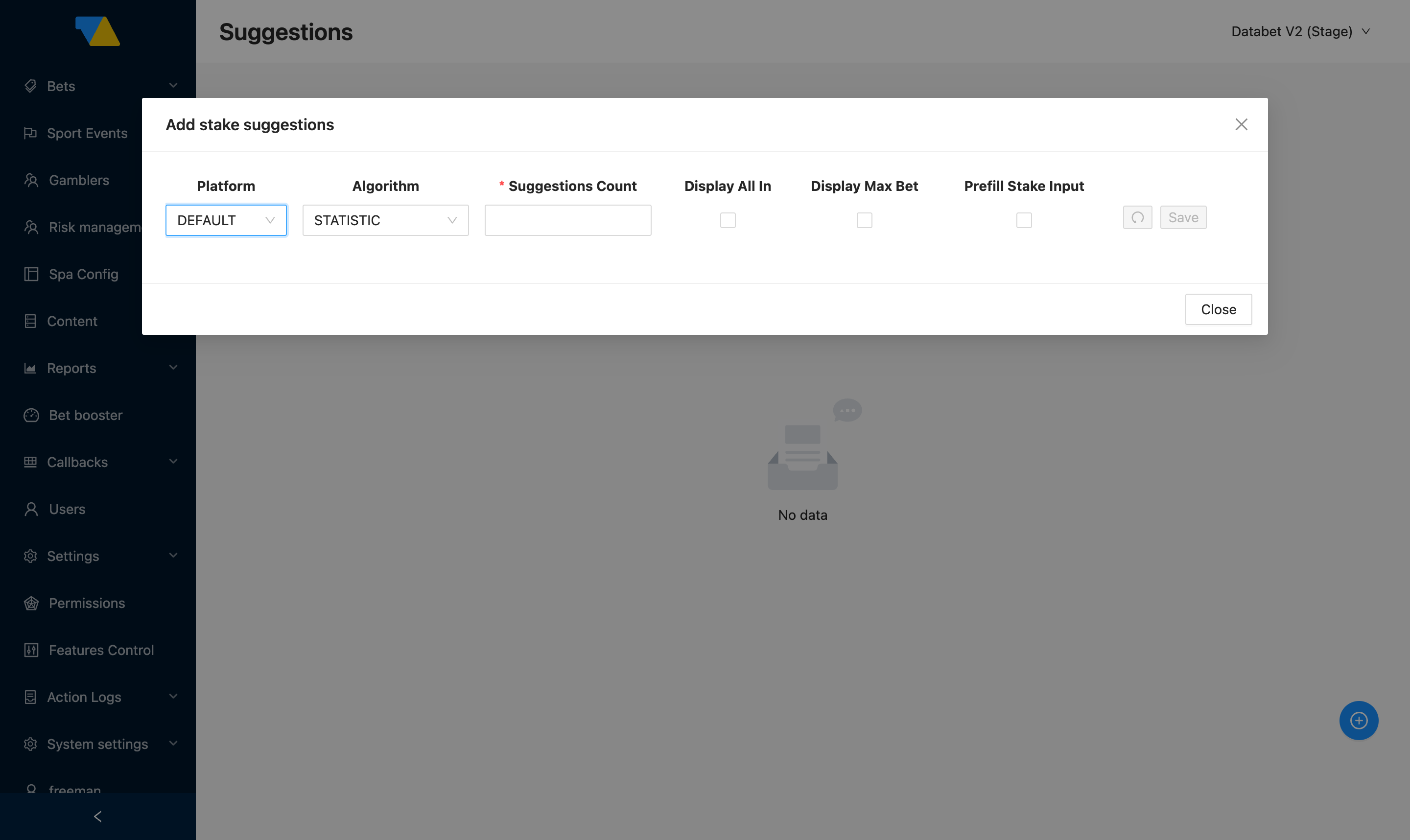
You configure one entry per platform. DEFAULT applies everywhere; specific entries override it for ANDROID, IOS, or WEB. Click the blue + button at the bottom-right of the page to open the Add stake suggestions dialog and fill in:
| Field | What it does |
|---|---|
| Platform | DEFAULT, ANDROID, IOS, or WEB. A platform-specific entry overrides DEFAULT for that platform |
| Algorithm | How the chip amounts are derived. Options: MANUAL (you set them — equivalent to Currency suggestions), STATISTIC (aggregate-based defaults), SMART (personalized per player — recommended) |
| Suggestions Count | How many chips to show in the betslip |
| Display All In | Tick to add an "All In" chip (the player's full balance) |
| Display Max Bet | Tick to add a Max Bet chip (the player's personal max) |
| Prefill Stake Input | Tick to pre-fill the stake input on betslip open instead of leaving it empty |
Click Save to apply. The undo button (curved arrow) reverts unsaved changes inside the dialog.
Recommended setup
Create a single DEFAULT entry with Algorithm = SMART. Players get personalized chip amounts based on their history and behaviour — better engagement than any preset list. Add platform-specific entries only when you genuinely need different behaviour on web vs mobile (e.g. mobile-only campaign offering different amounts).
No Suggestions entry = dummy chips
If no entry exists for a platform, the betslip falls back to a generic set of dummy chip amounts. They render fine but aren't personalised. Create at least a DEFAULT entry to replace them.
When to use Suggestions vs Currency suggestions
The two pages do similar things but scope differently:
- Suggestions is scoped per platform (DEFAULT / ANDROID / IOS / WEB). It supports automated algorithms (
STATISTIC,SMART) as well asMANUAL. Use it whenever you want a single platform-wide rule, and especially when you want personalization. - Currency suggestions is scoped per region and currency. It's manual-only. Use it when you need different chip lists in different countries or currencies — e.g. a regulated jurisdiction with mandated preset amounts.
MANUAL mode inside Suggestions is functionally equivalent to Currency suggestions on the platform axis, but doesn't give you the region/currency scoping that Currency suggestions does.
Blacklist tournaments
Open Content → Blacklist tournaments.
Suppresses specific tournaments from the entire sportsbook — catalogue, search, recommendations. A blacklisted tournament effectively doesn't exist as far as your players are concerned, even if the trading feed still carries it.
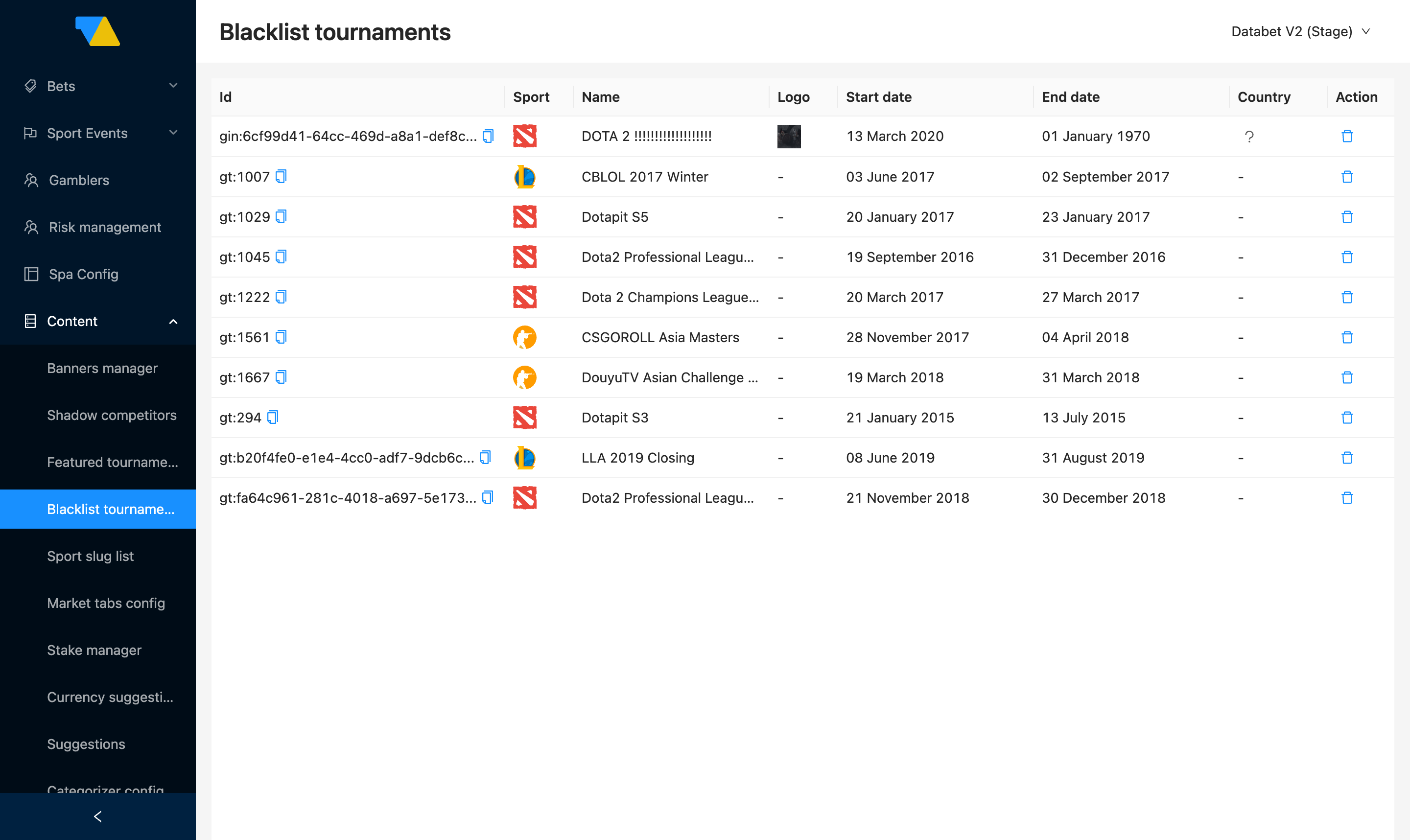
What you see
Each row is one blacklisted tournament:
| Column | What it shows |
|---|---|
| Id | The tournament ID (copyable). Typically formatted gt:NNNN for catalog tournaments or gin:UUID for newer ones |
| Sport | Sport icon (Dota 2, CS, LoL, etc.) |
| Name | Tournament name as known to the trading feed |
| Logo | Tournament logo image, where one exists |
| Start date / End date | The tournament's own dates (not the blacklist window) |
| Country | Country flag, where the tournament is regionally tagged |
| Action | A delete (trash) icon to remove the blacklist entry |
The list is the canonical set of suppressed tournaments — there's no per-region scoping on the page itself.
How to add a tournament to the blacklist
-
Click Add to Blacklist at the bottom of the list. A side panel opens with two required fields:
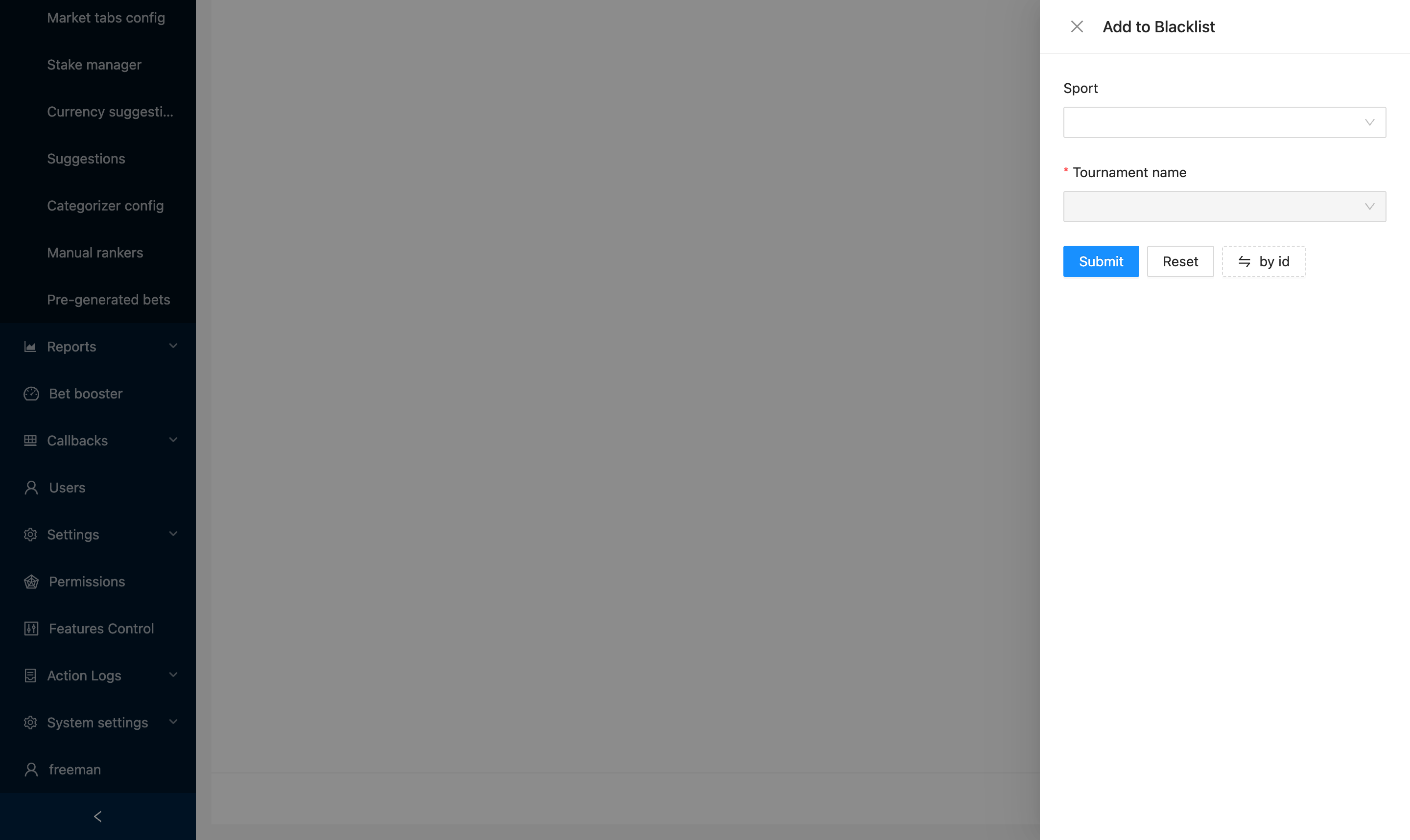
- Sport — pick the sport from the dropdown. This filters the tournament list in the next field.
- Tournament name — pick the tournament from the dropdown (autocomplete; type to narrow it down).
-
Alternative: click the by id button (the small swap-arrow button on the right) to switch the dialog into ID-based mode. Use this when you already have the Tournament ID — paste it directly instead of searching by name.
- Click Submit to add. Reset clears the form without submitting.
The new entry appears in the list immediately and is propagated to the sportsbook shortly after — typically within a few minutes. To verify, refresh the sportsbook catalogue / search and confirm the tournament has dropped out.
How to remove a tournament from the blacklist
Click the delete (trash) icon in the row's Action column. The tournament becomes visible to players again after the same short propagation delay.
Removing a blacklist isn't undoable from the BO
Deleting an entry happens immediately and there's no in-page confirmation prompt or undo. If you remove the wrong tournament, you'll need to add it back via the Add to Blacklist flow.
Sport slug list
Open Content → Sport slug list.
A reference of URL-friendly identifiers used for each sport — dota2, csgo, football, and so on. Slugs appear in sportsbook URLs (e.g. /sport/dota2/...) and in some integration payloads, so they need to stay stable.
Operator-rarely-touches territory
This page is integration-managed. Renaming a slug breaks bookmarks, deep links, and analytics that reference the old value, and DATA.BET doesn't automatically redirect old slugs to new ones — plan a rename as a real migration, not a quick edit. If you need to add a slug for a new sport, or rename an existing one, ask your integration manager.
Manual rankers
Open Content → Manual rankers.
By default, the sportsbook orders matches using a personalized + regional ranking that already surfaces the events most relevant to each player. For most cases that's enough — you don't need to touch this page.
Use Manual rankers when you specifically want to pin a match above whatever auto-ranking would choose — typically for a marketing push (a Cup Final, a derby, an esports major opener) where a specific event must be at the top regardless of player preference.
Match ordering precedence
Two WL-scope feature controls govern how the sportsbook orders matches; both are managed from Features Control in the sidebar:
| Layer | Feature control (WL scope) | Source | What it does |
|---|---|---|---|
| 1. Pinned | Pinned | This page's slots | Region-scoped pin slots take the top positions in the order you set |
| 2. Top | Top | The TOP checkbox on the Match page | Every TOP-flagged match sits above the auto-ranker, beneath the Pinned slots |
| 3. Auto-ranker | (always on) | Personalized + regional model | Orders everything else — usually personalized for logged-in players, regional as the fallback |
When all three are active for a given player, the order players see is: Pinned (this page) → Top-flagged matches → personalized / regional auto-ranker. Turning off the Pinned toggle disables layer 1; turning off Top disables layer 2; the auto-ranker always runs underneath.
Manual rankers need the Pinned toggle
The slots on this page only surface to players once the Pinned feature control is enabled at the WL scope. Without it, you can fill the page in and save, but nothing will reach players.
How to check: open Features Control in the sidebar — the Pinned toggle (and the related Top toggle for the TOP-flag layer) is listed there with its current state. If it's off, ask your integration manager to enable it before relying on this page.
Page layout
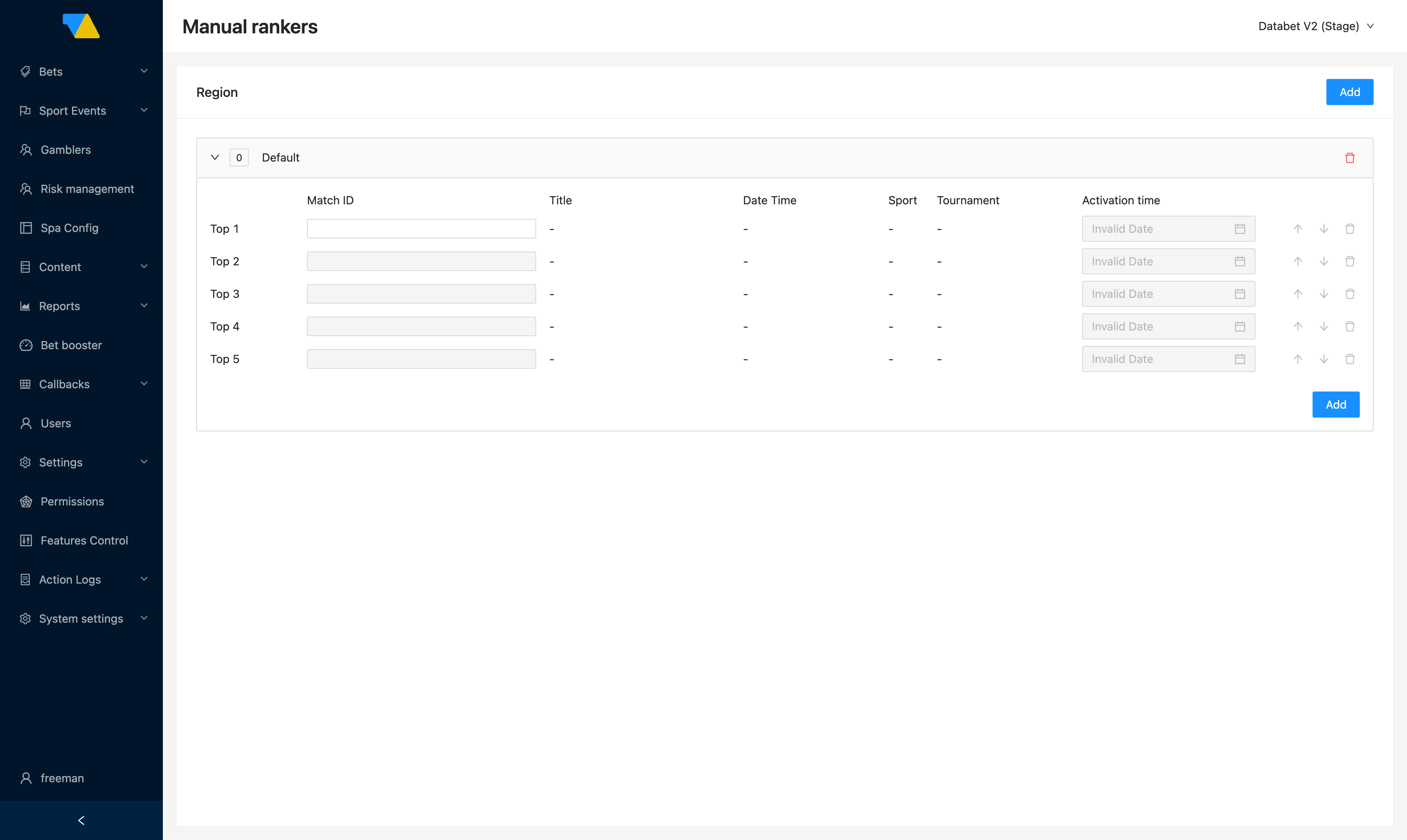
- Region row at the top with an Add button. The Default region applies to everyone; add country-specific regions to override the pinning for a given geo. Each region row shows the number of currently-pinned matches and a delete button.
- Click a region row to expand it. Inside, you'll see a list of pin slots labelled Top 1, Top 2, Top 3, … with these columns:
| Column | What it does |
|---|---|
| Match ID | Paste a match ID to pin that match into this slot. Title, Date Time, Sport, and Tournament auto-populate once the ID is recognised |
| Title / Date Time / Sport / Tournament | Read-only — fetched from the match itself |
| Activation time | When the pin should kick in. Pins outside their activation window are inactive |
| Up / Down arrows | Reorder the pin within the slot list |
| Delete | Remove the pin from this slot |
Slots fill progressively: only Top 1 is editable initially; Top 2 unlocks after you fill Top 1, and so on. Once you've used the visible slots, click the Add button inside the region to extend the list with Top 6, Top 7, etc.
How to pin a match
- Confirm the Pinned feature control is enabled on your WL (see the warning above).
- Decide the scope: pin globally in Default, or click Add at the top right to create a country-specific region first.
- Inside the region, paste the Match ID into the next available Top slot. The match details should populate within a moment.
- Set the Activation time so the pin kicks in at the right moment.
- Use the up/down arrows if you need a specific order between several pins.
How to remove a pin
Click the delete icon on the pin's row.
How to add or remove a region
- Add a region: click Add at the top right of the page and pick the country. A new region row appears with its own set of Top slots.
- Remove a region: click the delete icon on the region row. The pins inside are removed with it.
Pre-generated bets
Open Content → Pre-generated bets. In conversation operators often call these hot bundles — both names refer to the same page.
A hot bundle is a pre-built bet selection — a single, an express (multibet), or a Bet Builder bet — that the sportsbook surfaces to players in featured slots, scoped to the page they're looking at.
Most bundles are generated automatically. A neural-network-driven personalized ranking picks them per player and per page context (home, esports, tournament, etc.) — you don't have to curate the default list. This page is where you go when you want to pin extra bundles on top of the auto-generated set, or remove ones you don't want surfaced.
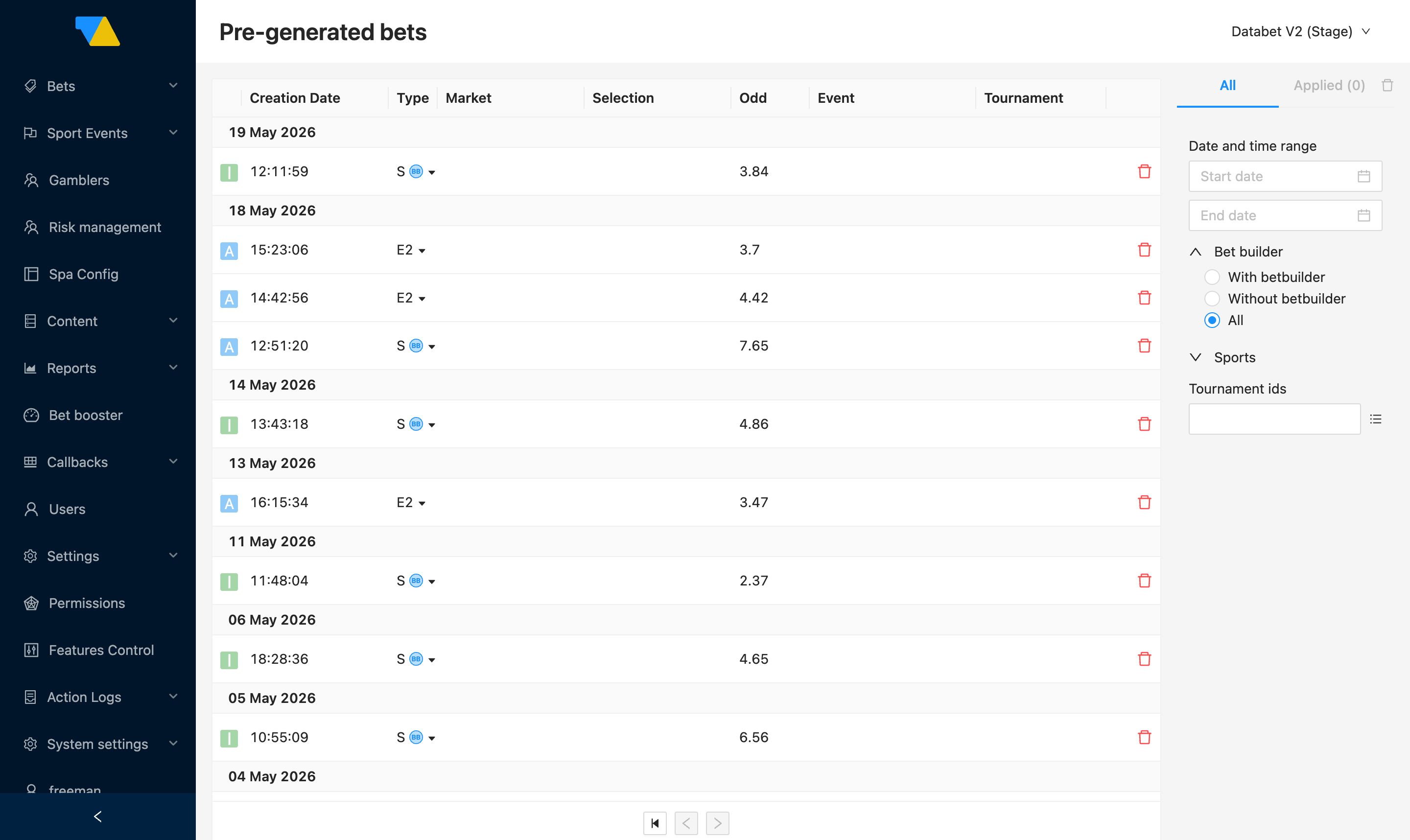
What you see
The list mixes auto-generated bundles and any manually-pinned ones. Each row is one bundle. The columns:
| Column | What it shows |
|---|---|
| Creation Date | When the underlying bet was placed |
| Type | S single, E<n> express with n legs (e.g. E2 = 2-leg express) |
| Market / Selection / Event / Tournament | Bet details — expand the row using the caret on the Type cell to see them populated |
| Odd | The price captured at placement |
The status badge at the start of the row follows the same convention as the Bets list.
The filter panel on the right narrows by Date and time range, Bet builder (With betbuilder / Without betbuilder / All), Sports, and Tournament IDs.
How to manually pin a hot bundle
If the auto-generated selection misses something you want to highlight — a marquee event, a marketing push — you can pin extra bundles using a marked test account. The pinned bundles appear alongside the auto-generated ones.
- Pick a test account. Choose a player account on your sportsbook that your team will use exclusively for pinning bundles. Send its Player ID to your integration manager.
- The integration manager marks the account internally. Once tagged, every bet that account places is captured as a pinned bundle.
- Place the bet from the sportsbook page where you want it to surface. Log into the sportsbook as the marked account, navigate to the page that should show the bundle — Home, the Esports homepage, a specific tournament page, and so on — and place the bet from there.
- The bet appears in Hot bundles automatically, scoped to the same context as the page it was placed on. Context is the page-scope identifier (e.g.
home,esports, a tournament scope) and it's how the sportsbook decides which bundles to show on which surface.
Bet Builder and multibets (expresses) are both supported — a marked account placing a Bet Builder or N-leg express bet pins it as a bundle the same way a single does.
Manual pins need the account marked first
Bets placed by an account that hasn't been tagged by your integration manager won't show up here as pinned bundles. If you've placed test bets and nothing extra appears in the list, the most likely cause is that the tagging step hasn't happened yet — confirm with your integration manager before debugging anything else. (The auto-generated bundles will still be there regardless.)
How to remove a hot bundle
Click the delete icon on the right of a row. Works for both auto-generated and manually-pinned bundles.