STM Logs
STM Logs provide visibility into the historical flow of data between DATA.BET and B2B client platforms. They allow users to retrospectively verify the delivery of key updates such as market/odds changes, market status or settlement, and live fixture statuses. This is essential for debugging, investigation, and support, rather than real-time monitoring.
📍 Accessing STM Logs
You can access STM Logs through the My Matches interface in the DATA.BET system. Follow these steps:
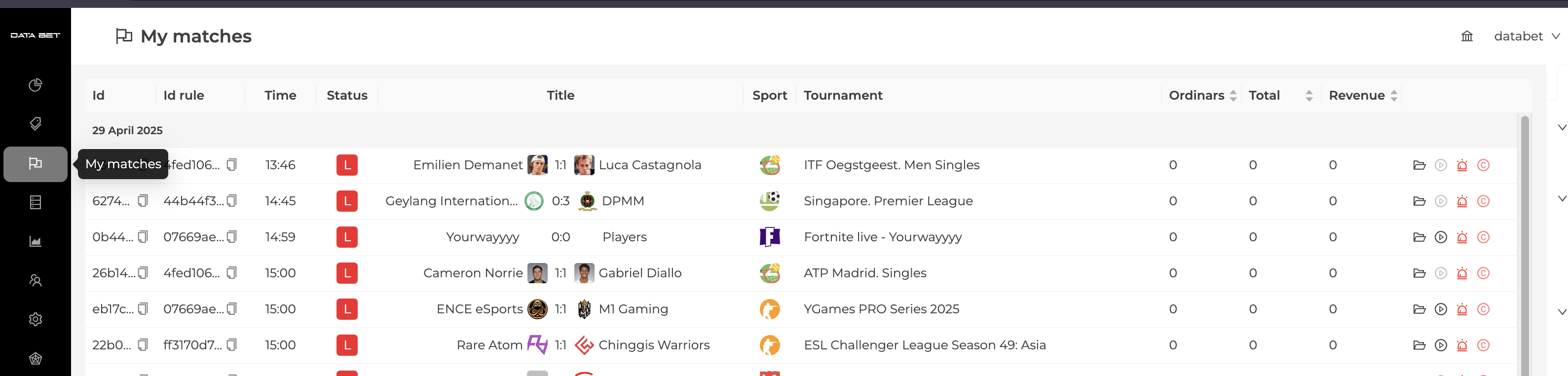
1. Go to the My Matches Page
Navigate to the My Matches section in your STM admin panel.
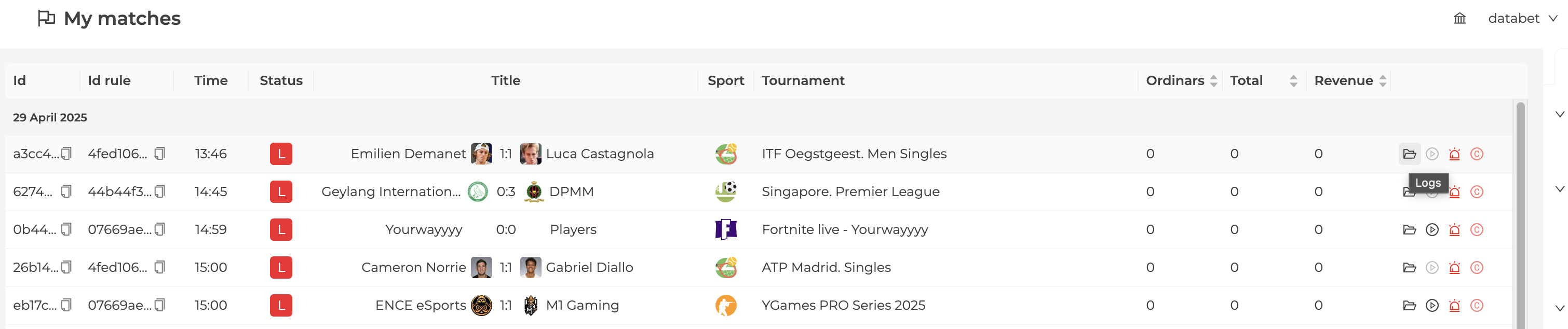
2. Find the Necessary Sport Event
Use the filters (e.g., by sport, tournament, date, status) to locate the relevant event.
Click the "Logs" button for that event.
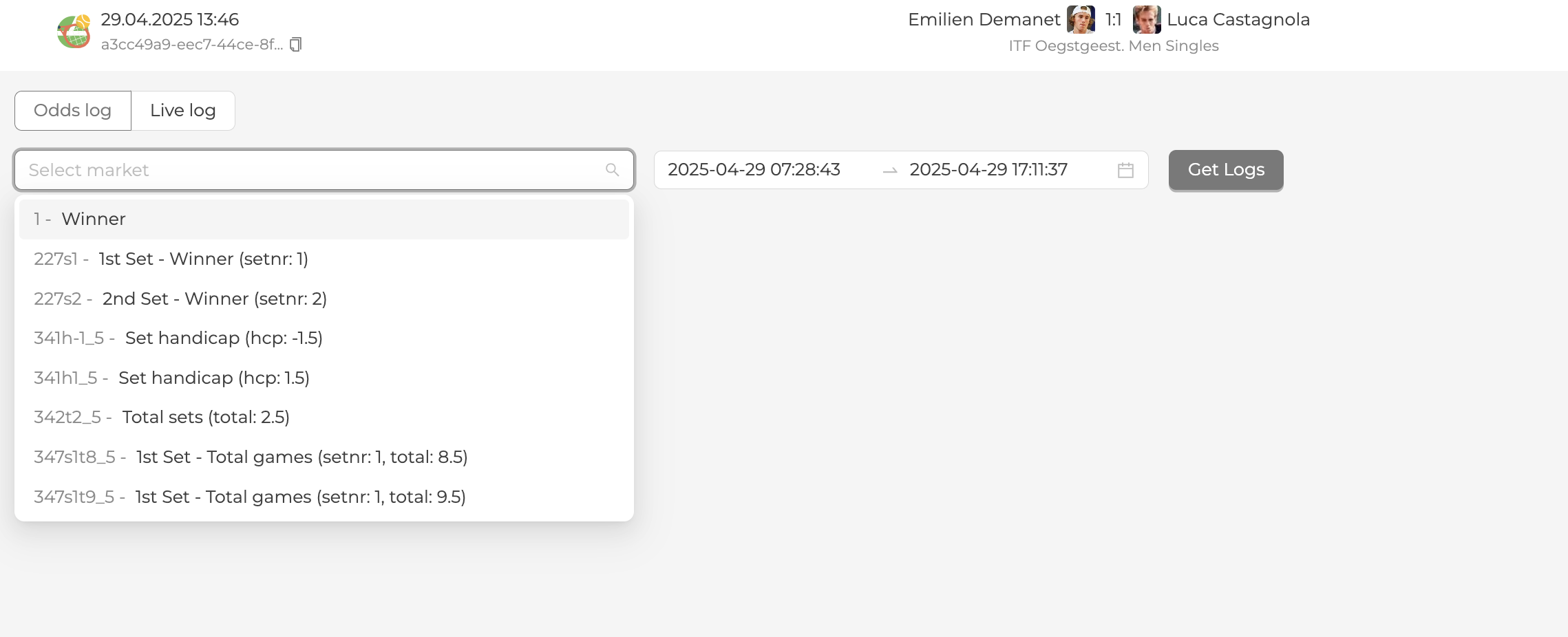
3. Select Market and Time Range
Info
By default, the time range includes the entire lifecycle of the sport event, from the first market creation till the time.Now
Choose the specific markets you're interested in (e.g., Match Winner, Total Goals) and select the time range to narrow down your query.
Then click "Get Logs" to view the results.
Odds Log
The Odds Log helps you monitor how markets and odds evolve over time. It's particularly useful when investigating issues related to market settlement or unexpected odds behavior.
Possible Delay
Odds Logs may include a slight delay (typically a few seconds, but can reach minutes in rare cases). This log is not designed for real-time alerting — it is primarily for post-event debugging and tracking market lifecycle.
Log Format
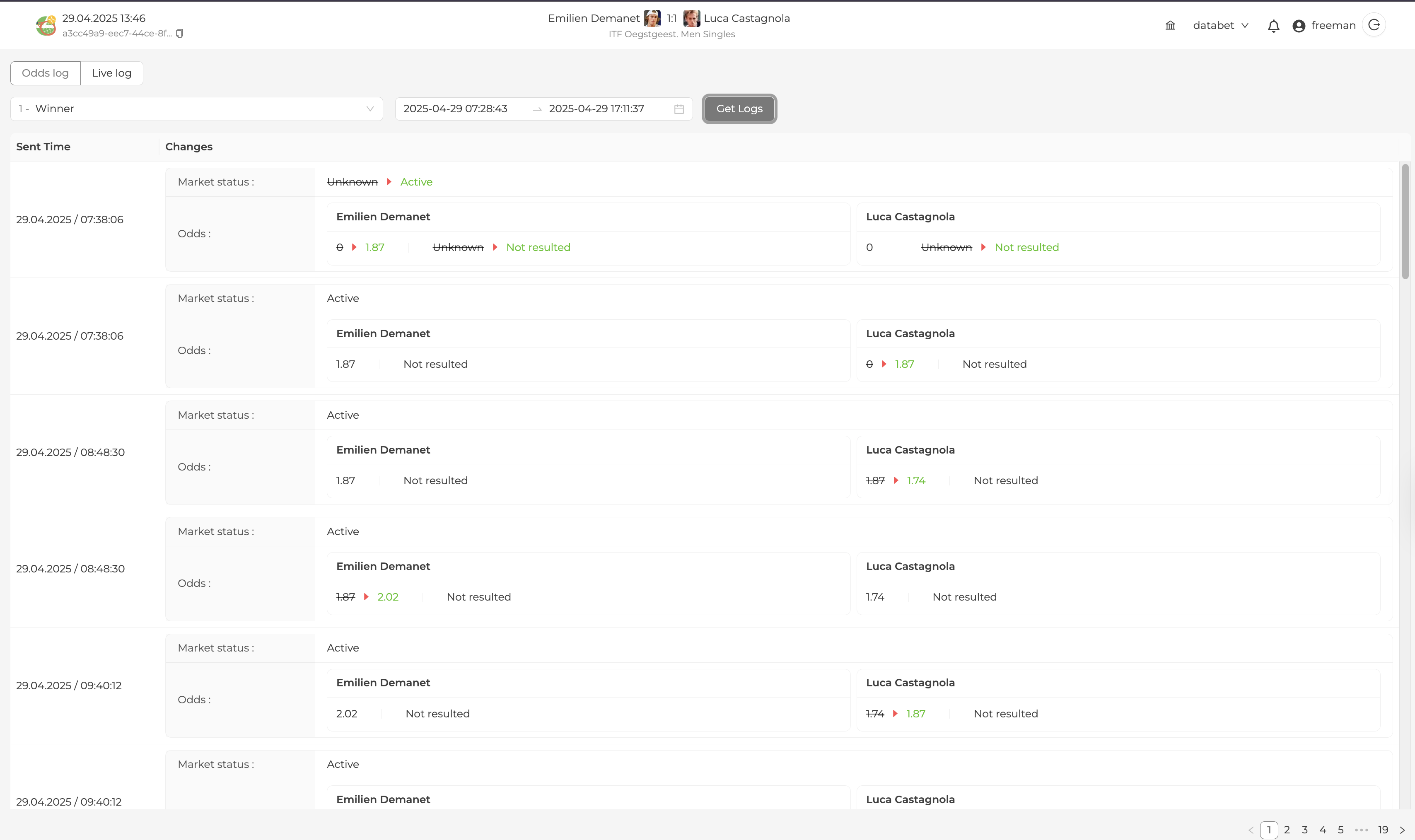
Each log entry includes:
| Column | Description |
|---|---|
| Sent Time | The time the change was logged, in your local timezone |
| Changes | The diff showing what has changed (market status, odds status/value, fixture status) |
What Changes Can You See?
Each changes block represents a transition from a previous state to a new one. You can observe:
- Market status transitions — e.g., from
ActivetoSuspendedSee the Market Status section to get more details. - Odds value changes — e.g., price changing from
2.00to1.85 - Outcome settlement/resettlement — e.g., specific outcomes within a market became
Win/Lossor wereRefunded. See the Odd Status section to get details.
Simple Example
Settlement Example
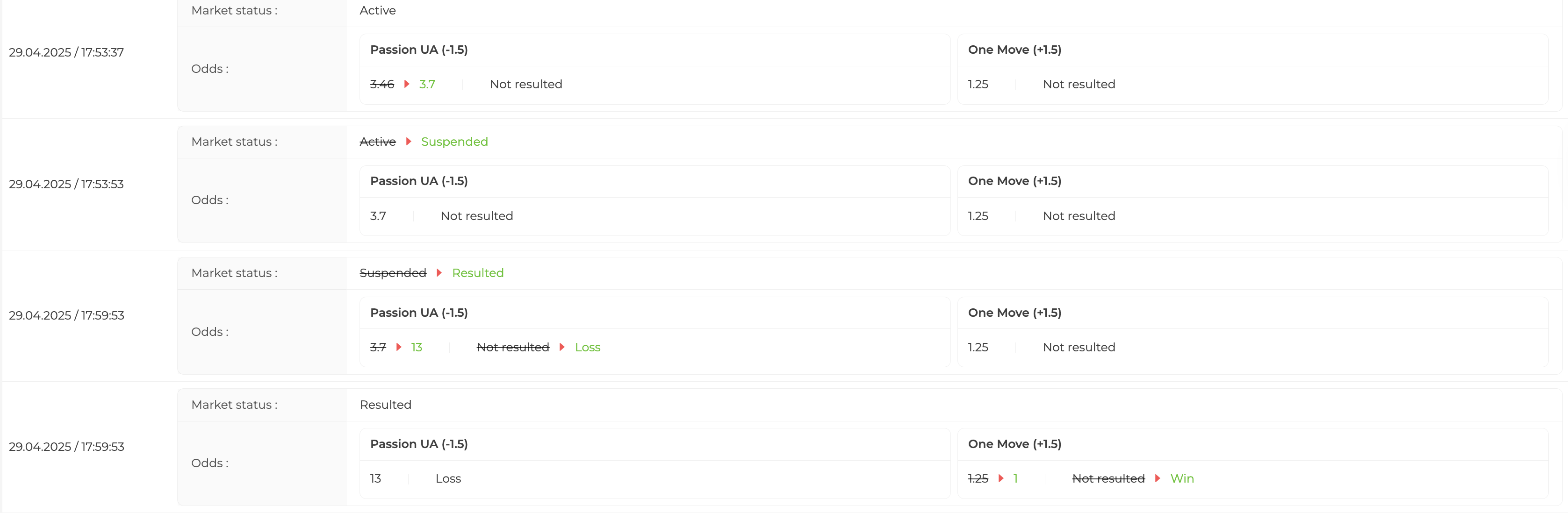
Refund (Voiding) Example
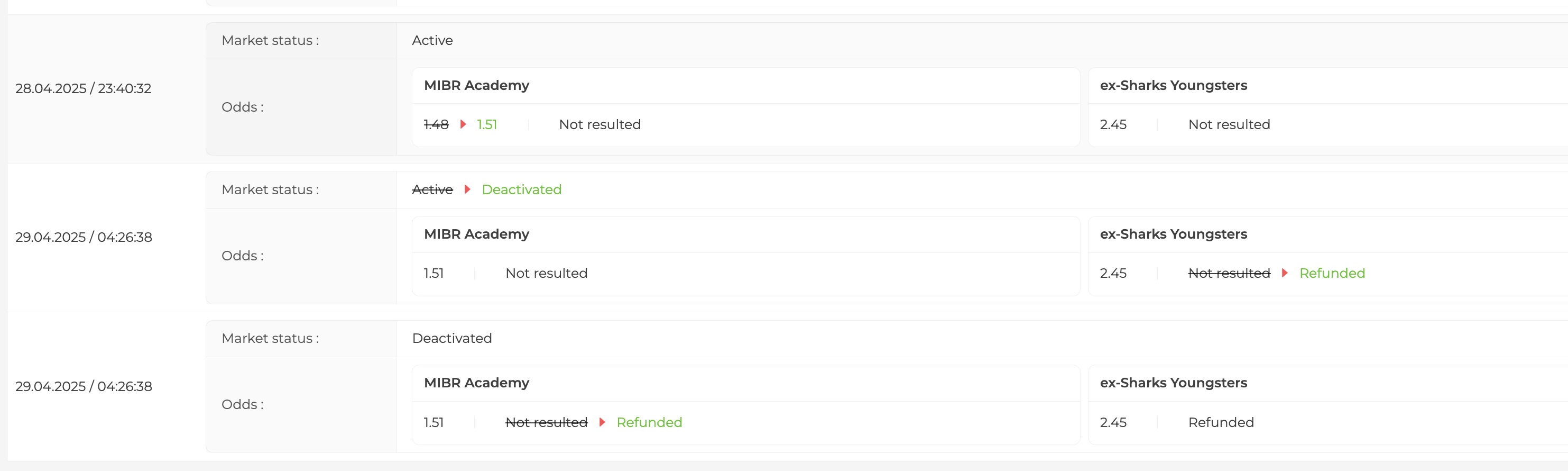
Initial State
- Initial State: When the market is first created or initialized, its status is set to
Unknown, and the odds are0, this update is not sent to you through the Odds Feed, but it's reflected on the Logs page. - Time Filter Considerations: If you adjust the time range in the log viewer, the first log entry may display an
Unknownmarket status with0 odds, even if this wasn't the actual initial state. This happens because the time filter may exclude earlier updates, showing only the log entries from a certain point in time. In other words, when you filter logs, it may seem like the market started with 0 odds, but this is just the result of missing earlier transitions.
Live Log
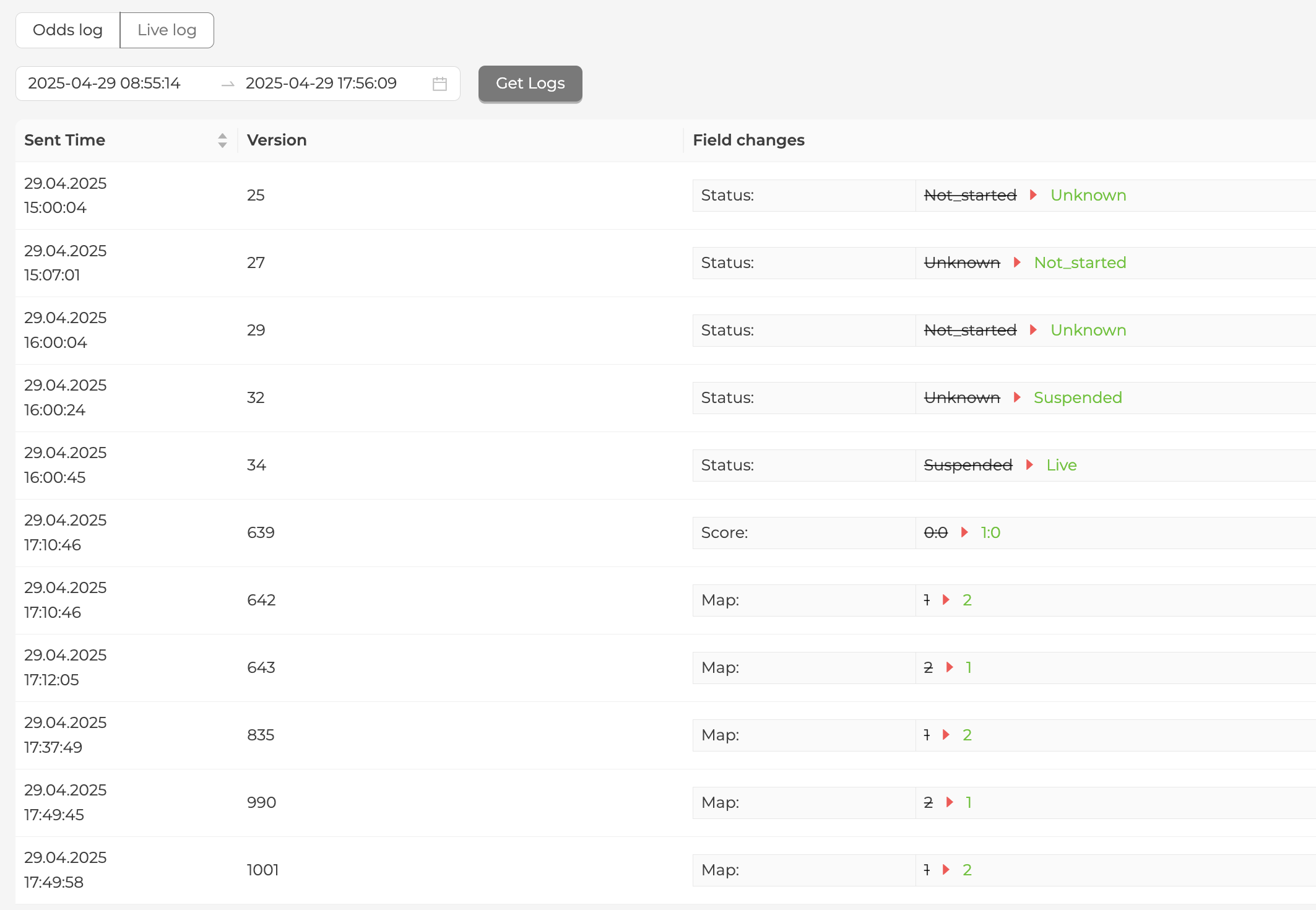
The Live Log tracks fixture status transitions and basic score updates for sport events.
Note
Live Logs may be limited for some sports. Additionally, the Version field in the Live Log is a numeric identifier of the update. It does not correlate with the version in the Odds Feed but rather represents the system’s internal update number.
Downloading Odds Feed Logs
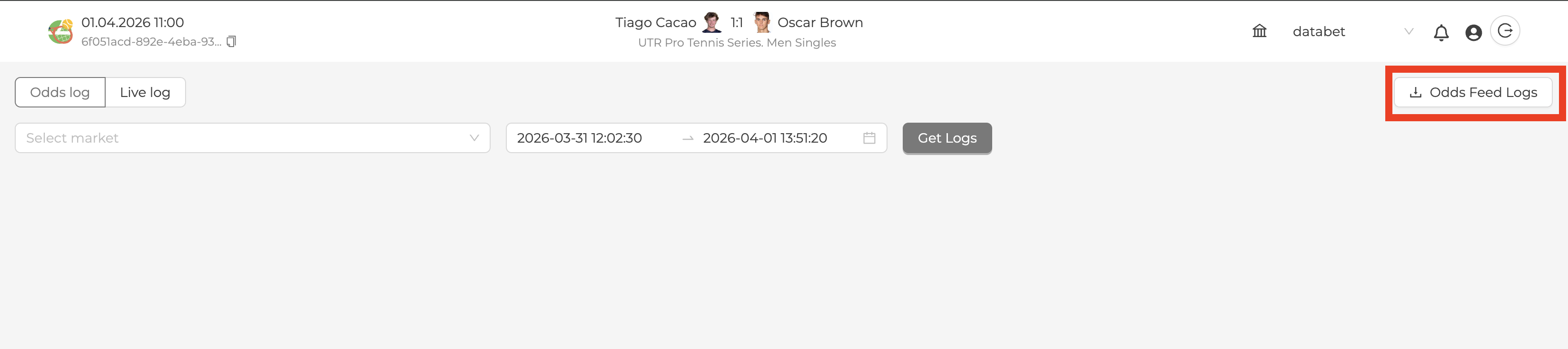
You can download the Odds Feed logs history for a sport event as a ZIP archive.
Filters
The download is not affected by any market or time range filters currently applied in the viewer — it always contains all available logs for the event.
Odds Feed logs download
Retention Period
Odds Feed Logs are available for download for 3 days only.
How It Works
- When the Logs page loads, the system automatically checks whether downloadable logs exist for the selected sport event.
- If logs are available, the "Odds Feed Logs" button is enabled.
- Click the button — the ZIP archive will be downloaded to your device.
- If no logs are found or the retention period has expired, the button remains disabled.