Restriction Mocks
What is a Restriction Mocks?
Restriction Mocks is a debug tool for testing and simulating restrictions that the system returns to a player, allowing you to test various situations and pipelines.
Each mock is configured with the following fields:
- Foreign Player ID – a unique external identifier of the player
- Request Type – the type of request. If not specified, the mock applies to all request types
- Bet Type – the type of bet. If not specified, the mock applies to all bet types
- Restrictions – a list of restrictions that the mock returns
- Priority – a number from 1 to 10 that determines the order in which mocks are applied. If there are multiple mocks for the same player, the mock with the highest priority is used first
- Counter – the number of times a mock can be triggered. If this field is empty, the mock can be triggered an unlimited number of times
Creating a New Mock
-
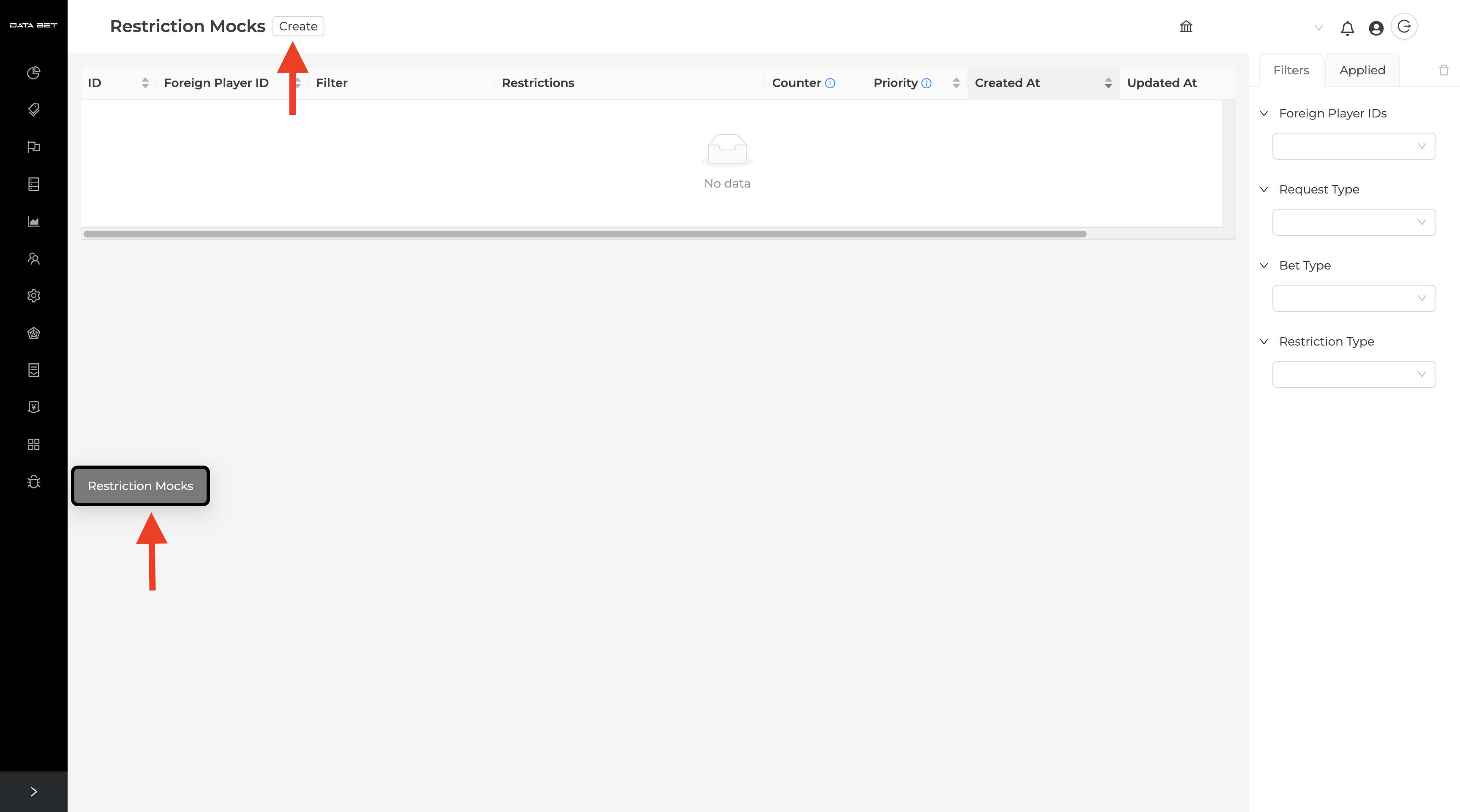
Click the Create button at the top of the screen.
-
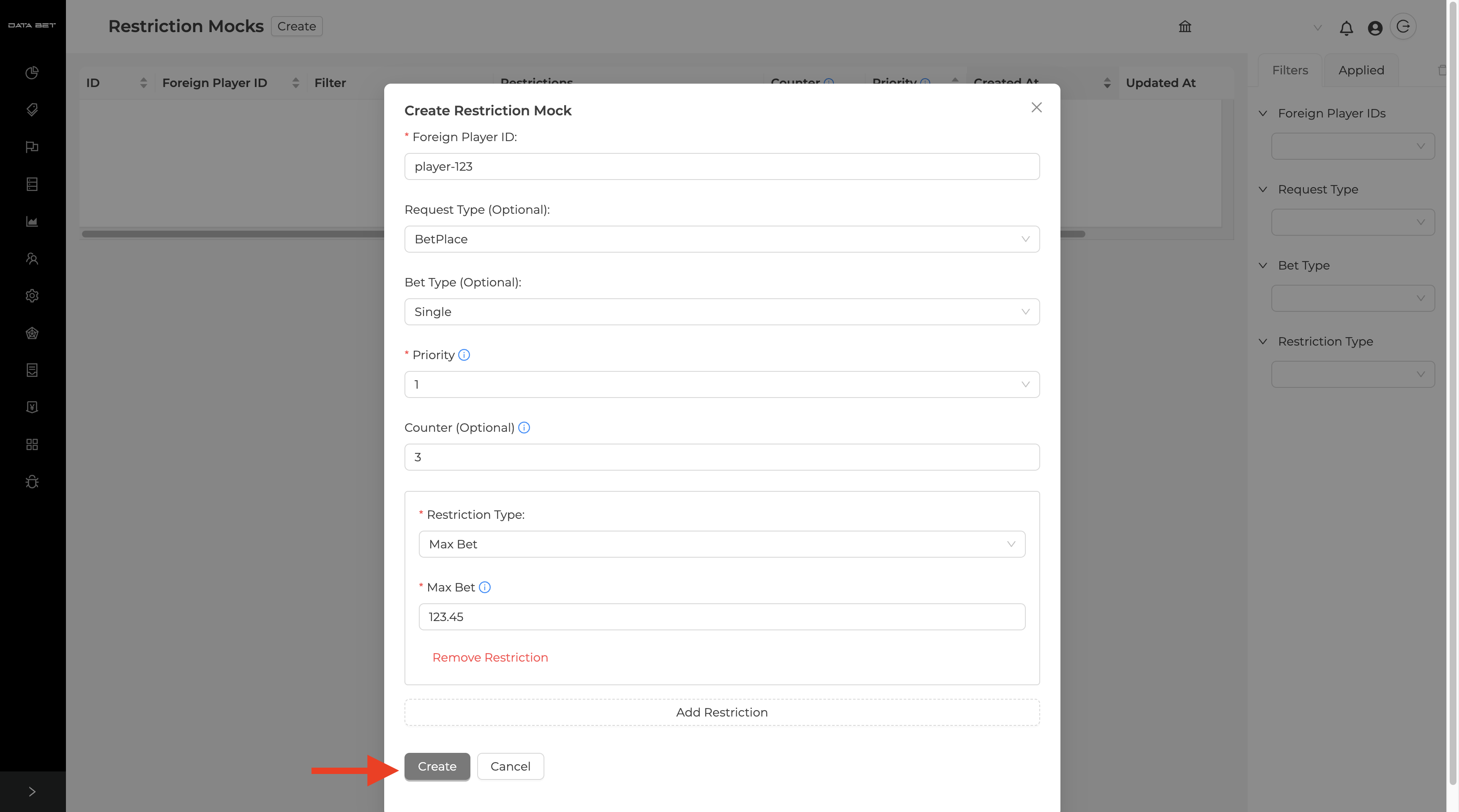
Fill in the required fields:
- Foreign Player ID — enter the player identifier
- Priority — select a priority from 1 to 10
-
Fill in optional fields (if needed):
- Request Type — select a request type from the list
- Bet Type — select a bet type
- Counter — enter the number of triggers (leave empty for unlimited use)
-
Add restrictions:
- Click the Add Restriction button
- Select a restriction type from the list
- Fill in the required parameters for the selected type
- You can add multiple items
-
Click the Create button to save the mock.
Editing a Mock
-
Find the desired mock in the table.
-
Click the Edit button in the actions column.
-
Make the necessary changes (any fields except Foreign Player ID).
-
Click the Update button to save the changes.
Deleting a Mock
-
Find the desired mock in the table.
-
Click the trash icon button in the actions column.
-
Confirm the deletion in the popup window.
Filtering Mocks
The left panel provides filters for finding the desired mocks:
- Foreign Player IDs – enter one or multiple player identifiers separated by Enter
- Request Type – select a request type from the list.
- Bet Type – select a bet type.
- Restriction Type – select one or multiple restriction types. The table will display only mocks that contain at least one of the selected restrictions.
Tips
- Priority: Use higher priorities (8-10) for scenarios that should be triggered first
- Counter: Set a counter for tests with limited triggers
- Filters: Use Request Type and Bet Type to create more specific scenarios
- Multiple Restrictions: Add multiple restrictions to a single mock for complex scenarios